
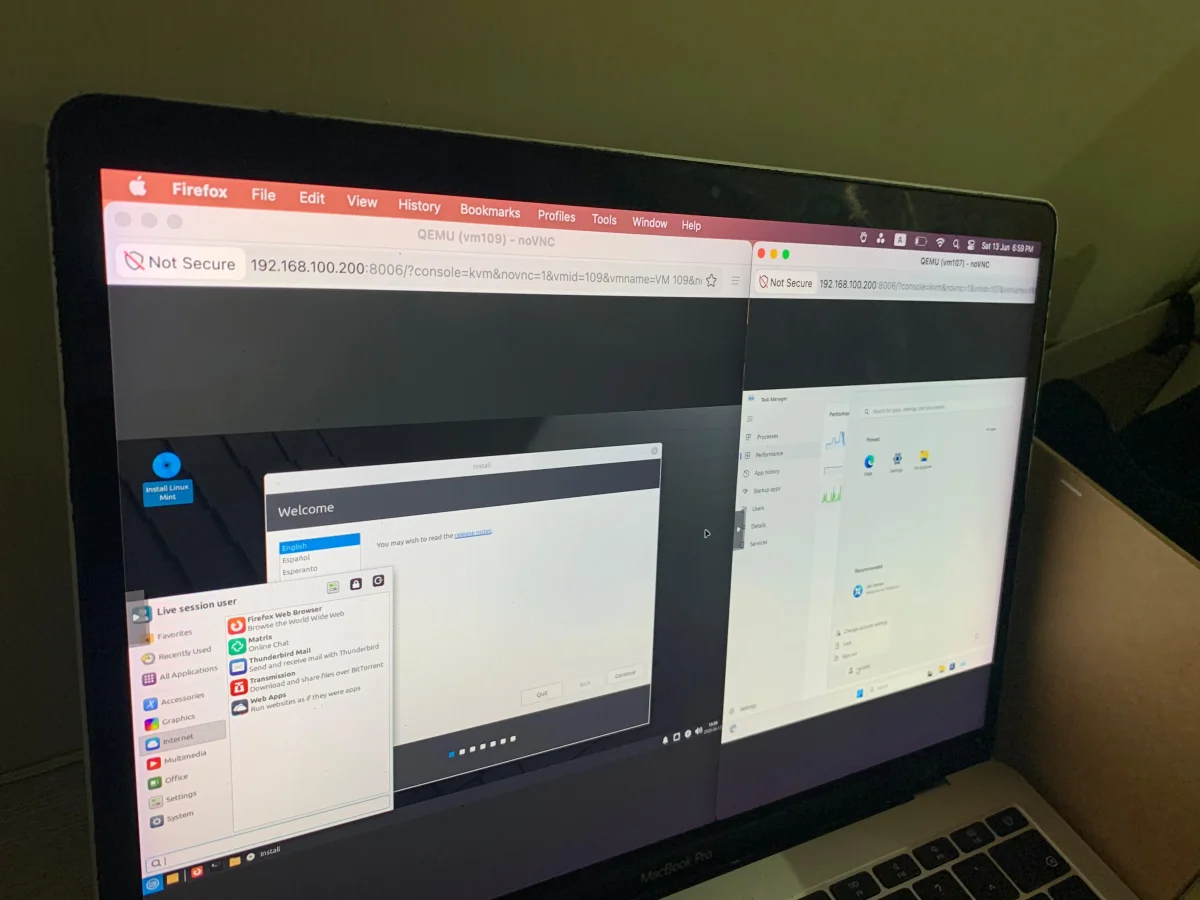

Proxmox revolutionizes computing: Seamless integration of Windows and Linux on a single device

Proxmox revolutionizes computing: Seamless integration of Windows and Linux on a single device

Proxmox enables seamless operation of multiple operating systems through virtual machines, eliminating conflicts found in dual-boot setups. Explore its potential for efficient computing.

NeboAI I summarize the news with data, figures and context
IN 30 SECONDS

IN 1 SENTENCE

SENTIMENT
Neutral

𒀭
NeboAI is working, please wait...
Preparing detailed analysis
Quick summary completed
Extracting data, figures and quotes...
Identifying key players and context
DETAILED ANALYSIS
SHARE

NeboAI produces automated editions of journalistic texts in the form of summaries and analyses. Its experimental results are based on artificial intelligence. As an AI edition, texts may occasionally contain errors, omissions, incorrect data relationships and other unforeseen inaccuracies. We recommend verifying the content.

The challenges of dual-booting Windows alongside another operating system, such as Linux, are well-documented, often resulting in various conflicts like bootloader issues or synchronization errors. These complications stem from Windows' design, which assumes it will function as the sole operating system on a drive.

Proxmox offers a solution by enabling users to run multiple operating systems as virtual machines (VMs) without the conflicts associated with dual-booting. This innovative operating system is tailored specifically for managing VMs and lightweight containers, allowing them to operate simultaneously without interference. With Proxmox, users can leverage hardware passthrough capabilities, enabling VMs to utilize physical components directly, such as the GPU.

Proxmox is intended for use in a headless environment, meaning it is not installed as a traditional operating system on a primary computer. Instead, users access it through a web interface from any device with a browser. This setup also allows for the self-hosting of various services, such as media servers and password managers, expanding its utility beyond just virtualization.

To set up a Windows VM on Proxmox, users must obtain a Windows installer image in .iso format and create a virtual machine for installation. The process begins by uploading the ISO image through the Proxmox web interface, facilitating an efficient setup for running Windows virtually.

Want to read the full article? Access the original article with all the details.
Read Original Article
TL;DR

This article is an original summary for informational purposes. Image credits and full coverage at the original source. · View Content Policy

Editorial
Editorial Staff

Our editorial team works around the clock to bring you the latest tech news, trends, and insights from the industry. We cover everything from artificial intelligence breakthroughs to startup funding rounds, gadget launches, and cybersecurity threats. Our mission is to keep you informed with accurate, timely, and relevant technology coverage.

Press Enter to search or ESC to close