
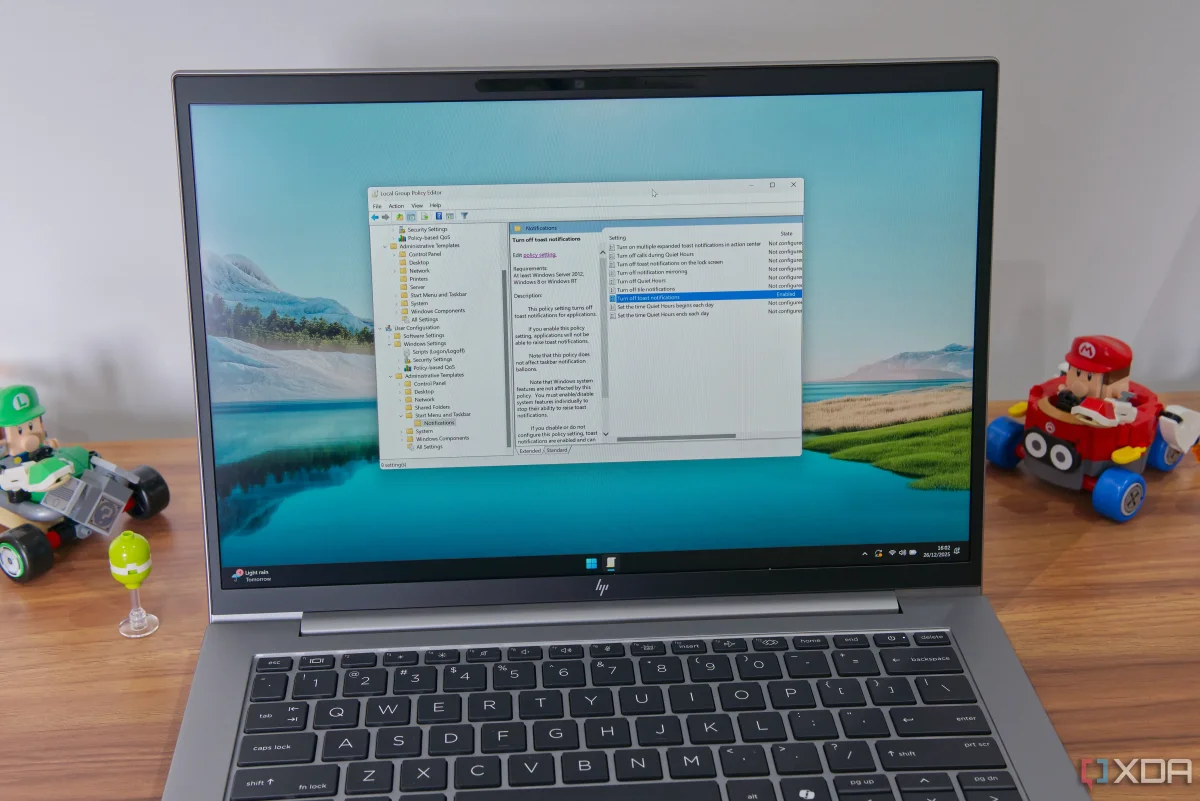

How Group Policy Empowers Users to Customize Windows 11 Beyond Default Settings

How Group Policy Empowers Users to Customize Windows 11 Beyond Default Settings

Windows 11 users can regain control over their experience by utilizing the Group Policy Editor available in Pro editions, potentially reducing disruptive updates and restarts. Discover how to enhance your system's performance.

NeboAI I summarize the news with data, figures and context
IN 30 SECONDS

IN 1 SENTENCE

SENTIMENT
Neutral

𒀭
NeboAI is working, please wait...
Preparing detailed analysis
Quick summary completed
Extracting data, figures and quotes...
Identifying key players and context
DETAILED ANALYSIS
SHARE

NeboAI produces automated editions of journalistic texts in the form of summaries and analyses. Its experimental results are based on artificial intelligence. As an AI edition, texts may occasionally contain errors, omissions, incorrect data relationships and other unforeseen inaccuracies. We recommend verifying the content.

Windows 11 users often face challenges with automatic updates that can disrupt their workflow. While these updates are crucial for security, they frequently install at inconvenient times, leading to unexpected restarts and potential data loss. Fortunately, there are ways to mitigate these issues through the Group Policy Editor, available in Windows 11 Pro and higher editions.

To gain better control over updates, users can access the Group Policy Editor and navigate to Computer Configuration > Administrative Templates > Windows Components > Windows Update. Here, the “Configure Automatic Updates” policy can be enabled, allowing users to select the preferred update mode. Mode number 2, which notifies users for downloads and auto-installs, is particularly recommended.

Additionally, enabling the “No auto-restart with logged on users for automatic update installations” policy in the Legacy Policies folder can prevent unwanted restarts during update installations. This legacy option remains valuable despite the introduction of newer settings. By utilizing these policies, users can enhance their Windows 11 experience significantly.

Want to read the full article? Access the original article with all the details.
Read Original Article
TL;DR

This article is an original summary for informational purposes. Image credits and full coverage at the original source. · View Content Policy

Editorial
Editorial Staff

Our editorial team works around the clock to bring you the latest tech news, trends, and insights from the industry. We cover everything from artificial intelligence breakthroughs to startup funding rounds, gadget launches, and cybersecurity threats. Our mission is to keep you informed with accurate, timely, and relevant technology coverage.

Press Enter to search or ESC to close